
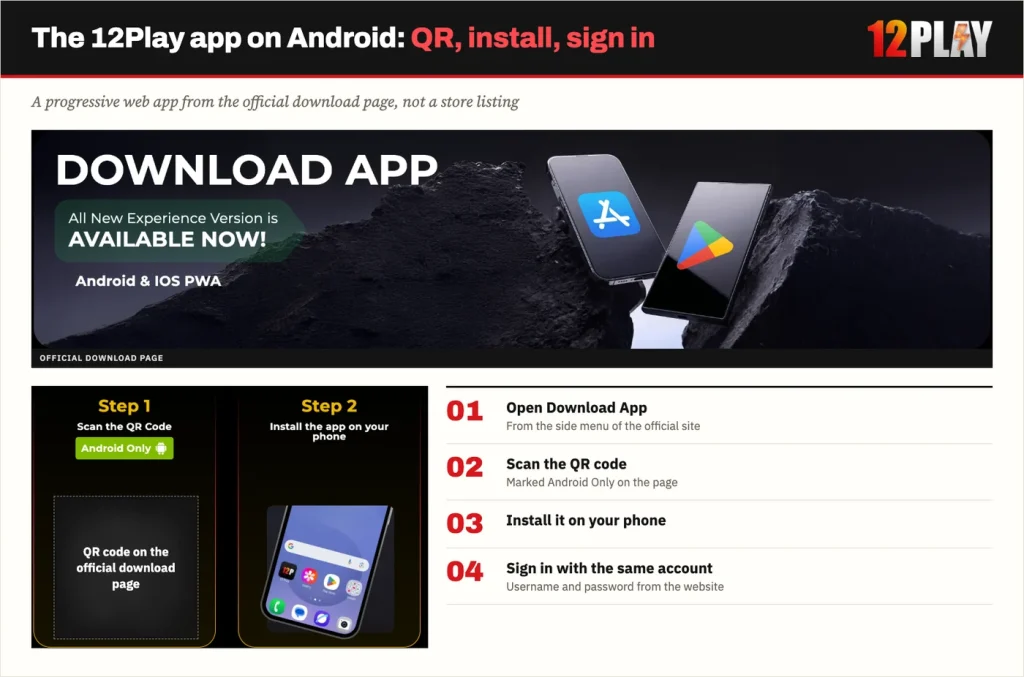
The 12Play app is a progressive web app, installed from the Download App page in the side menu rather than from a store. It opens the same account, wallet and lobby you use in a browser, with its own icon on your home screen.
What the 12Play app is
A progressive web app, or PWA, is a website that a phone can install like an app. Once installed, it opens full-screen with its own icon and no browser address bar. It also updates whenever the site behind it is updated, so there is no store review step and no version number to chase.
Because the content comes from the site, a PWA takes very little storage compared with a traditional app. The trade-off is that you are always signed in to a live site, so the icon only ever points at the address you installed it from.
| Detail | 12Play |
|---|---|
| App type | Progressive web app (web app) |
| Android install | QR code on the Download App page |
| iPhone install | Safari, Share, Add to Home Screen |
| Store listing | None |
| Account | Same as the website |
| Support inside | Live Chat, 24 hours |
12Play app download on Android
The Android route starts in the lobby, not in a store. Open the side menu and choose Download App, where a QR code waits. Scan it with your phone, then follow the install prompt your browser shows. That QR code is for Android only, so it will not help on an iPhone.
Finding the icon after install
When the install finishes, open the new icon and sign in with your usual username and password. On Android, a web app normally lands on the home screen and in the app drawer with your other apps. So if the icon is missing from the home screen, check the drawer before installing again.
Install only from a page you reached yourself
Reach the download page through the side menu in your own browser session. That way you know the install came from the operator’s page, not from a redirect someone sent you.
Installing the app on iPhone
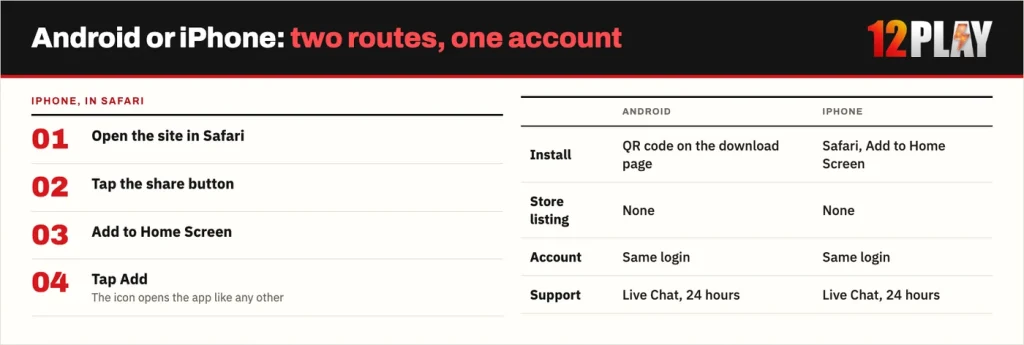
iPhone has no QR step at all. Safari handles the install, and it must be Safari, not Chrome or another browser, because Safari holds the home-screen function.
- Open the site in Safari. Use Safari on the iPhone, not another browser app.
- Open the browser menu. Tap the share button at the bottom of the screen.
- Find Add to Home Screen. Scroll the share sheet until that option appears.
- Tap Add to Home Screen. Edit the name if you want to.
- Tap Add. The icon appears on your home screen and opens the app full-screen.
The result is the same product as on Android: one icon, one sign-in, the same balance.
The Android QR code and the iPhone steps are both on the Download App page in the side menu.
Is there a 12Play APK?
No APK file is published, and there is no listing in Google Play or the App Store. Since the app is a PWA, there is no package to download. The Download App page gives Android a QR code and iPhone a set of Safari steps, and that is the whole process.
Why an unofficial APK is a risk
So if a site, a forum post or a message offers a 12Play APK, it is not this install. Any unofficial Android package carries the same general risks. It can bundle malware, show overlay screens built to capture a username and password, or take permissions you never agreed to. On an account that holds a wallet, a stolen login costs far more than a slow browser.
Keep in mind
Install only from the Download App page you reached yourself through the menu. A file offered in a chat message or an advert is not the 12Play app.
What works in the 12Play mobile app
Everything the mobile site carries is in the app, because it is the same site in an app shell. You reach live casino, slots, sports and 4D from the app exactly as you would from a browser.
The bottom bar
The mobile layout puts a bar across the bottom of the screen with Home, 12Goal, Wallet, Promotions and Live Chat. Wallet is where deposits and withdrawals happen. Promotions is where you read a bonus before picking it in the deposit dropdown. Live Chat runs 24 hours inside the app, so a question never needs a browser.
One login, one balance
Your login and balance are shared with the website. Deposit on a desktop, open the app later, and the same figure is there.
App or browser?
The app is a shortcut, not a different product. It saves typing an address, opens full-screen and keeps the bottom bar one thumb away. Nothing about the account, the wallet or the games changes.
So if you play on the same phone most days, install it. If you switch between a laptop, a work phone and a tablet, the browser is enough and you lose nothing. Using both works too: the icon on the phone, the browser on the desktop, one account behind each.
When the app will not sign you in
A sign-in prompt after an update or a long gap does not mean the install broke.
Signed out after an update
A web app can simply ask you to sign in again. Use the same username and password, and open Forgot Password on the login form if the password will not take. Deleting the icon and installing again from the download page is harmless too, because nothing your account needs is stored on the phone.
When Live Chat is the route
If the form rejects the account rather than the password, or the app opens to a blank screen after sign-in, contact Live Chat inside the app. Apart from the password reset, it is the only recovery channel. Before reinstalling anything, run through the login and recovery steps, including the one-account rule and the identity checks that come before a withdrawal.
FAQ
Is there a 12Play APK file to download?
No APK is published. The install runs from the Download App page in the side menu: Android scans the QR code there, and iPhone adds the site to the home screen through Safari. A file offered anywhere else is not that install.
Is the app in Google Play or the App Store?
There is no store listing on either platform. The app is a progressive web app, so it is installed from the website itself rather than downloaded from a store.
Do I need a separate account for the app?
No. The app opens the same account with the same username and password, and the same wallet balance. Registration and sign-in work exactly as they do in a browser.
Does the app work on iPhone?
Yes, through Safari. Open the site in Safari, tap the share button, choose Add to Home Screen, then tap Add. The icon then opens the app full-screen like any other iPhone app.
Why does the QR code not work on my iPhone?
The QR code on the download page is for Android installs only. On iPhone you do not scan anything: you open the site in Safari and use Add to Home Screen instead.